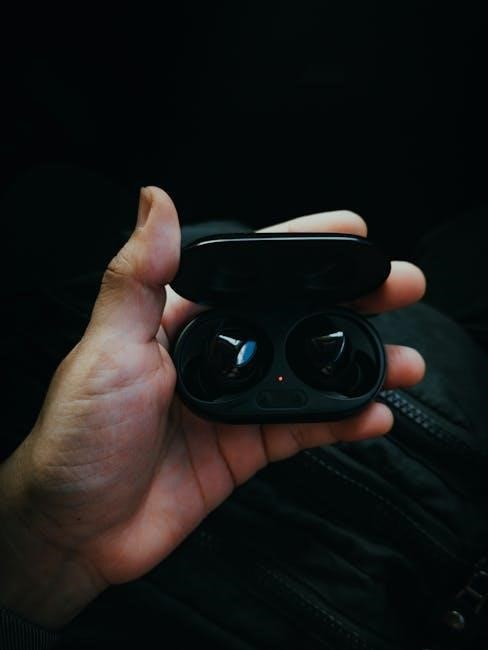
PocBuds T60 deliver immersive audio with multipoint connectivity, IPX4 water resistance, and an impressive 28-hour battery life, all within a compact design.
What’s in the Box?
Upon unboxing your new PocBuds T60, you’ll discover a complete audio experience ready for immediate use. The package includes a pair of T60 wireless earbuds, meticulously crafted for comfort and performance. Alongside the earbuds, you’ll find a sleek and portable charging case, designed to provide multiple charges on the go.
To ensure a secure and personalized fit, the box contains various sizes of ear tips and enhancers. A USB-C charging cable is also included for convenient power replenishment of the case. Finally, a quick start guide is provided, offering essential instructions for setup, pairing, and maximizing your listening enjoyment.
Key Features of the T60
The PocBuds T60 boast an array of impressive features designed to elevate your audio experience. Enjoy seamless multipoint connectivity, allowing connection to multiple devices simultaneously. Benefit from IPX4 water resistance, protecting against splashes and sweat during workouts.
Experience extended listening with up to 28 hours of battery life, combined with the charging case. The innovative TWISTLOCK technology ensures a secure and comfortable fit, while Google Fast Pair simplifies Android device connections. A compact design and low latency further enhance usability.
First-Time Use & Preparation
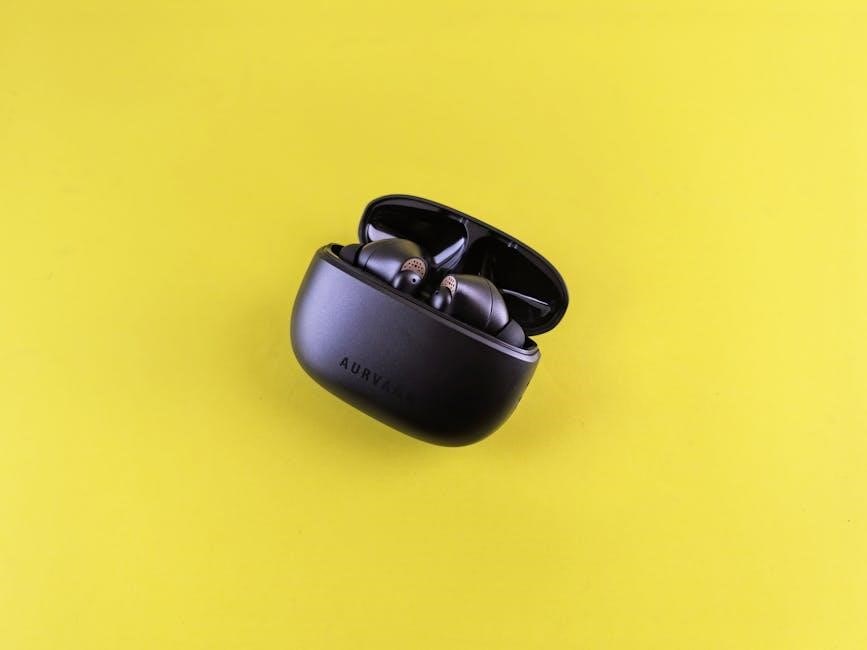
Before initial use, remove the isolation film from the earbuds. Then, place them in the charging case to begin the charging process.
Removing the Isolation Film
Upon opening your PocBuds T60 package, you’ll notice a protective isolation film covering each earbud. This film is crucial to remove before the first use, as it prevents a proper initial charge and can hinder Bluetooth connectivity. Carefully peel off this film from both the left and right earbuds.
The film may be slightly adhesive, so gentle but firm pressure is recommended. Ensure the entire film is removed from all contact points on the earbuds. Failing to remove it can lead to charging issues or pairing difficulties. This simple step ensures optimal performance and a seamless user experience with your new T60 earbuds.
Charging the Earbuds and Case
To begin, place the PocBuds T60 earbuds into the charging case. Ensure they are properly seated to establish a connection for charging. Then, connect the charging case to a power source using a USB-C cable (not included). The LED indicators on the case will illuminate, displaying the charging status.
Allow sufficient time for both the earbuds and the charging case to fully charge. A full charge typically takes around 2-3 hours. The case provides multiple additional charges, extending the overall playtime of your T60 earbuds. Always use a compatible USB-C adapter for optimal charging performance.
Attaching Ear Tips and Enhancers
For a secure and comfortable fit, select the ear tips that best suit your ear canal size. Gently attach the chosen ear tips onto the earbuds, ensuring a snug fit. Additionally, the PocBuds T60 include enhancers for added stability. Attach these enhancers over the ear tips to further customize the fit.
Experiment with different combinations of ear tips and enhancers to find the optimal configuration for your ears. A proper fit is crucial for maximizing audio quality and noise isolation. Remember to securely attach both components before use to prevent slippage during activity.
Pairing the T60 Earbuds
PocBuds T60 easily pair with Android, iOS, Mac, and PC devices via Bluetooth; Google Fast Pair simplifies connections on Android systems.
Pairing with Android Devices (Google Fast Pair)
Connecting your PocBuds T60 to an Android device or PC is remarkably straightforward thanks to Google Fast Pair technology. Begin by ensuring your earbuds are in pairing mode – simply remove them from the charging case. A Google Fast Pair pop-up will then automatically appear on your Android device, guiding you through the quick and easy connection process.
This intuitive feature eliminates the need to manually search for Bluetooth devices within your settings. Just follow the on-screen prompts to establish a seamless and secure connection. Google Fast Pair also remembers your PocBuds T60, allowing for future, instant connections whenever they are near your paired Android device.
Pairing with iOS (iPhone/iPad)
To pair your PocBuds T60 with an iPhone or iPad, first, ensure the earbuds are in pairing mode by removing them from the charging case. Next, navigate to the Settings app on your iOS device and select “Bluetooth.” Your PocBuds T60 should appear in the list of available devices under “Other Devices.”
Simply tap on the PocBuds T60 name to initiate the pairing process. Your iOS device will then connect to the earbuds, and they will be listed under “My Devices.” Once connected, you can enjoy seamless audio streaming and hands-free calling with your PocBuds T60 on your Apple devices.
Pairing with Mac and PC
Pairing your PocBuds T60 with a Mac or PC is straightforward. First, put the earbuds into pairing mode by taking them out of the charging case. On your computer, navigate to the Bluetooth settings. For Macs, find “Bluetooth” in System Preferences; for PCs, access it through Settings.
Your PocBuds T60 will appear in the list of available devices. Select them to initiate pairing. A connection prompt may appear – confirm to complete the process. Enjoy wireless audio on your computer with your newly paired PocBuds T60!
Understanding the Earbud Controls
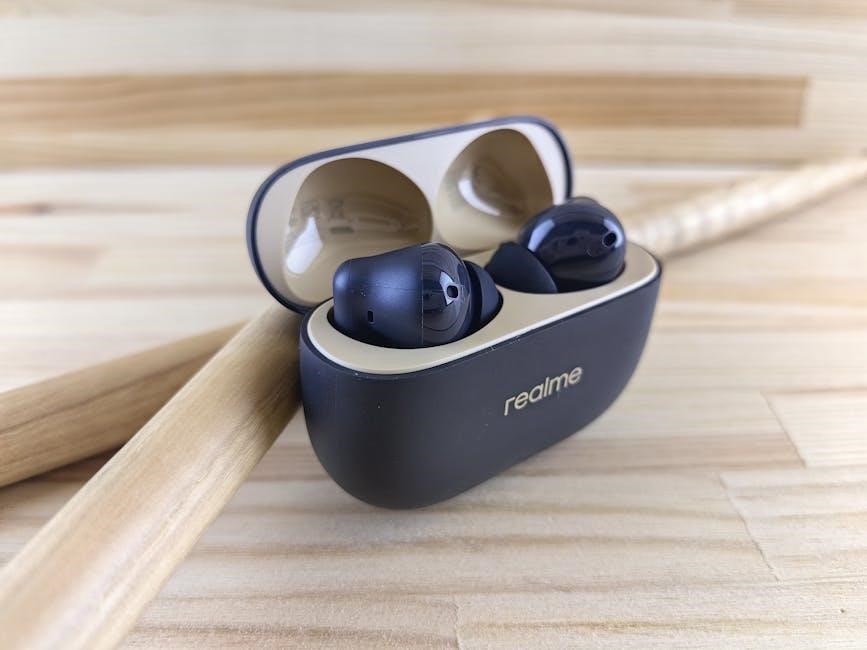
PocBuds T60 feature intuitive touch controls for managing music playback, calls, and activating your voice assistant with simple taps and holds.
Music Playback Controls
PocBuds T60 offer seamless music control directly from the earbuds. A single press on either earbud pauses or plays your current track. To skip to the next song, perform a double press on the right earbud. Conversely, a double press on the left earbud will return you to the previous track.
For volume adjustment, a single press and hold on the right earbud increases the volume, while a single press and hold on the left earbud decreases it. These intuitive controls allow you to effortlessly manage your listening experience without reaching for your connected device, providing convenient and on-the-go adjustments.
Call Management Controls
PocBuds T60 provide convenient call handling features. To answer an incoming call, simply press either earbud once. To reject a call, press and hold either earbud for approximately two seconds. During a call, a single press on either earbud will mute or unmute the microphone, ensuring privacy when needed.
To end a call, press either earbud once. These simple, intuitive controls allow for effortless call management without needing to access your paired device, keeping you connected and in control during important conversations, even while on the move.
Activating Voice Assistant
PocBuds T60 seamlessly integrate with your preferred voice assistant. To activate Siri, Google Assistant, or other compatible assistants, simply press the multi-function button on either earbud three times in quick succession. This will instantly launch your voice assistant, allowing you to make commands.
You can then use voice commands to control music, make calls, send messages, get directions, and much more, all hands-free. Ensure your device is connected to the internet for optimal voice assistant performance and a truly connected experience.
Troubleshooting Common Issues
If PocBuds T60 won’t pair, aren’t charging, or have one earbud failing, resetting them—placing them in the case and blinking red—can often resolve problems.
Earbuds Not Pairing
If your PocBuds T60 are experiencing difficulty pairing with a device, several steps can be taken to resolve the issue. First, ensure the earbuds are adequately charged. Then, confirm Bluetooth is enabled on your intended device. If pairing fails, try resetting the earbuds by placing them back into the charging case and allowing both earbuds to blink red.
For Android users, Google Fast Pair should automatically detect the earbuds. If it doesn’t, manually search for available Bluetooth devices. On iOS, ensure the earbuds are in pairing mode before searching within your Bluetooth settings. Remember to remove previously paired devices if conflicts arise, and restart both the earbuds and your connecting device.
Earbuds Not Charging
If your PocBuds T60 aren’t charging, first inspect the charging case and earbuds for any debris or obstructions. Ensure the earbuds are correctly seated within the case, making firm contact with the charging pins; Verify the charging cable and power adapter are functioning correctly by testing with another device.
If the issue persists, try a different USB port or wall adapter. Allow the earbuds to charge for at least 10-15 minutes before checking the LED indicators. If no charging indication appears, attempt a reset of the earbuds. A full discharge of the earbuds may also require a longer initial charging period.
One Earbud Not Working
If only one PocBuds T60 earbud is functioning, begin by ensuring both earbuds are fully charged. Sometimes, a significant battery imbalance can cause this issue. Try placing both earbuds back into the charging case for a complete recharge cycle. Next, attempt to reset the earbuds by placing them in the case and allowing them to blink red, then holding the case button.
If the problem continues, check for software glitches by re-pairing the earbuds with your device. Ensure no obstructions are interfering with the Bluetooth connection. A factory reset might also resolve the issue.
Battery Life and Charging
PocBuds T60 boast an extended 28-hour playtime with the charging case, featuring LED indicators to conveniently monitor the charging status.
Earbud Battery Life
The PocBuds T60 earbuds provide substantial listening time on a single charge, allowing for extended use throughout your day. While specific durations vary based on volume and audio content, users can generally expect several hours of uninterrupted playback. To maximize battery performance, consider moderate volume levels and avoid extreme temperatures during use and storage.
Regular charging ensures optimal functionality and longevity of the earbuds. Placing the earbuds back into the charging case after each use is recommended to maintain a consistent power level and prepare them for your next listening session. The case provides multiple additional charges, significantly extending the overall playtime.
Charging Case Battery Life
The PocBuds T60 charging case is designed to provide multiple full charges for your earbuds, significantly extending your total listening time. Expect approximately 28 hours of additional playtime with a fully charged case, offering convenience for travel or extended use away from a power source.
Charging the case itself is straightforward, typically via USB-C. The case’s LED indicators display the remaining battery level, allowing you to easily monitor its charge status. Regularly charging the case ensures it’s always ready to power up your earbuds whenever needed, maximizing the usability of your PocBuds T60.
Charging Indicators (LED)
The PocBuds T60 utilize LED indicators on both the charging case and the earbuds themselves to communicate charging status. A red light typically indicates that the earbuds or case are currently charging. When fully charged, the LED usually turns to a blue or green color, signaling completion.
Blinking red lights can signify pairing mode or a low battery condition. Pay attention to these visual cues to understand the power levels and operational state of your PocBuds T60, ensuring optimal performance and preventing unexpected interruptions during use.
TWISTLOCK Technology
TWISTLOCK ensures a secure and comfortable fit by inserting the earbuds downwards and twisting them backwards to lock them firmly in place.
How to Properly Insert and Lock
Achieving a secure fit with your PocBuds T60 is crucial for optimal audio quality and comfort. Begin by gently inserting the earbud downwards into your ear canal. Avoid forcing it; a comfortable, yet snug, initial placement is key. Once inserted, carefully twist the earbud backwards – towards the rear of your ear – to engage the TWISTLOCK mechanism;
This twisting motion securely locks the earbud in place, preventing it from falling out during activity. Experiment with slight adjustments to the twisting angle to find the most stable and comfortable position for your ear. Proper locking ensures a noise-isolating seal and maximizes the benefits of the earbuds.
Ensuring a Secure Fit
A secure fit is paramount for enjoying the full potential of your PocBuds T60. After utilizing the TWISTLOCK technology, gently tug on the earbuds to confirm they are firmly locked in place and won’t dislodge during movement. If any looseness is detected, repeat the insertion and twisting process, making minor adjustments to the angle.
Experimenting with the included ear tips and enhancers is vital. Different sizes cater to varying ear canal shapes, enhancing both comfort and stability. A proper seal also improves sound isolation and bass response, delivering a superior listening experience.
Multipoint Connectivity
PocBuds T60 seamlessly connect to multiple devices, allowing effortless switching between your smartphone, tablet, or PC for uninterrupted audio.
Connecting Multiple Devices
The PocBuds T60 earbuds support multipoint connectivity, enabling simultaneous connections to two devices. To connect, first pair the earbuds with one device as usual through Bluetooth settings. Then, put the earbuds into pairing mode again. Next, select the T60 from the Bluetooth device list on your second device.
Once connected to both, the earbuds will remember these pairings for future automatic connections. This feature provides a convenient way to switch between audio sources without manual re-pairing, enhancing your listening experience across different devices.
Switching Between Devices
When using multipoint connectivity with your PocBuds T60, switching between devices is seamless. If both paired devices are within range, the earbuds will automatically connect to the device currently playing audio. If no audio is playing, simply initiate audio playback on the desired device.
Alternatively, you can disconnect from one device through its Bluetooth settings to force the earbuds to connect to the other. This ensures prioritized audio from your chosen source, offering a fluid transition between your connected smartphones, tablets, or computers.
Water Resistance (IPX4)
PocBuds T60 boasts an IPX4 rating, protecting against splashes and sweat – ideal for workouts and daily use, ensuring durability.
Understanding IPX4 Rating
The IPX4 rating signifies that the PocBuds T60 earbuds are protected against water splashing from any direction. This means they can withstand light rain or sweat during exercise without damage. However, it’s crucial to understand that IPX4 does not mean the earbuds are waterproof.
Avoid fully submerging the earbuds in water, or exposing them to high-pressure water jets. Prolonged exposure to moisture, even within the IPX4 limits, can potentially affect the earbuds’ lifespan. Proper care and maintenance, like drying the earbuds after exposure to sweat, will help maximize their durability and performance.
Care and Maintenance
To ensure the longevity of your PocBuds T60, regular cleaning is essential. Gently wipe the earbuds with a soft, dry cloth to remove dirt and earwax. Avoid using abrasive cleaners or excessive moisture. After workouts or exposure to sweat, thoroughly dry the earbuds before storing them in the charging case.
Store the earbuds in a cool, dry place when not in use. Avoid exposing them to extreme temperatures or direct sunlight. Regularly inspect the charging port for debris and clean it carefully if needed. Proper care will maintain optimal performance and extend the life of your earbuds.
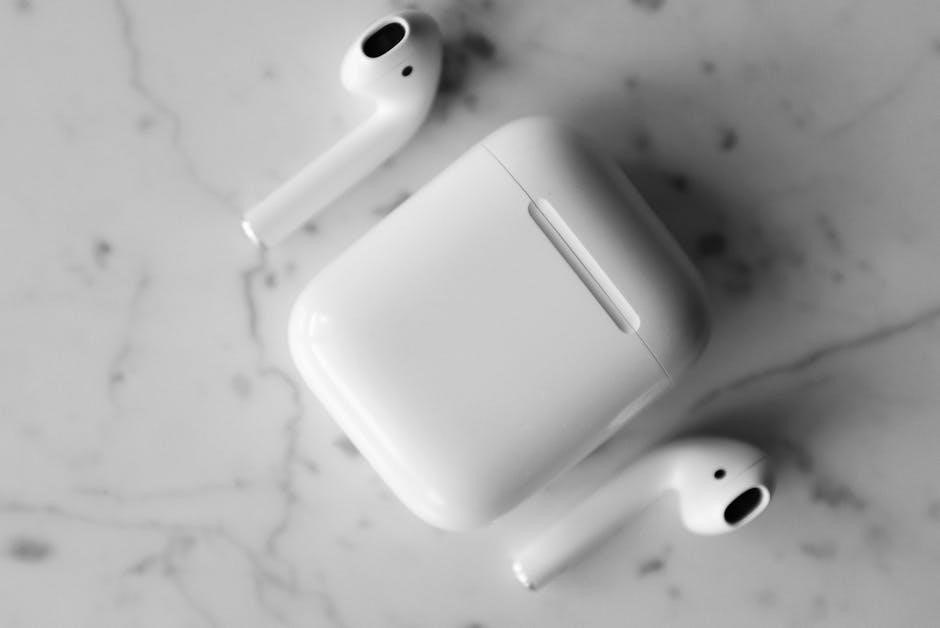
Resetting the Earbuds
To reset PocBuds T60, place them in the charging case, ensure both blink red, then press and hold the case button for a few seconds.
Reset Procedure
If your PocBuds T60 are experiencing connectivity issues or malfunctioning, a reset can often resolve the problem. Begin by ensuring both earbuds are placed securely within the charging case. Confirm that both earbuds are displaying a red blinking light, indicating they are not currently connected.
Next, locate the button on the charging case itself. Press and hold this button for approximately five to ten seconds. During this time, observe the LED indicators on the case; they may flash or change color. Release the button once you notice a change in the LED behavior, signifying the reset process has initiated. Following the reset, attempt to pair the earbuds with your device again.
When to Reset
Consider resetting your PocBuds T60 if you encounter persistent pairing difficulties, where the earbuds fail to connect to your devices despite repeated attempts. Resetting is also beneficial if one or both earbuds are not functioning correctly, exhibiting issues like distorted audio or unresponsive controls.
Furthermore, if you’ve switched between numerous devices and suspect connectivity conflicts, a reset can clear previous pairings and establish a fresh connection. If the earbuds are behaving erratically or displaying unexpected behavior, initiating a reset is a recommended troubleshooting step before contacting customer support.